Smart Home Office Gadgets: Desk Upgrades & AI Tools
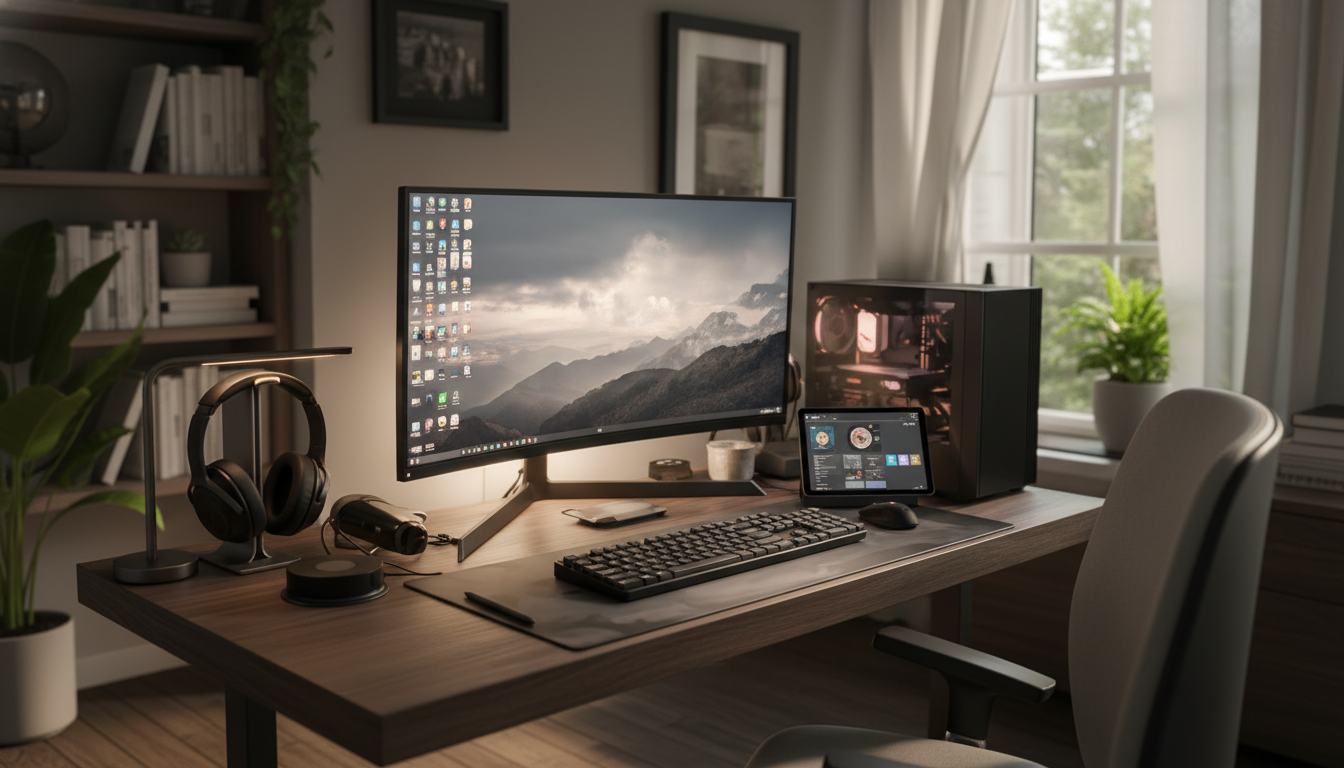
Gadgets That Transform a Home Office: Smart Desk Upgrades and AI Productivity Tools
A high-performing home office comes from a few targeted upgrades: better ergonomics, cleaner power and cable flow, clearer calls, and tools that reduce repetitive work. The goal is a space that feels easier to use at 9 a.m. and still feels good at 4 p.m.—without turning the desk into a showroom of gear.
Start with the basics: comfort, posture, and reach
The fastest upgrades tend to be the least flashy: getting your screen height right, keeping shoulders relaxed, and putting your hands where they naturally want to rest. Small corrections add up over long workdays.
- Prioritize an adjustable chair and a monitor position that keeps the top of the screen near eye level to reduce neck strain.
- Use a laptop stand or monitor arm to free desk space and keep the keyboard/mouse at a neutral wrist angle.
- Add a footrest if feet don’t rest flat; small posture corrections compound over long workdays.
- Choose peripherals that match workload: a compact keyboard for tight spaces, or a full-size layout with numpad for finance and data entry.
For ergonomics specifics (monitor height, reach zones, and posture checkpoints), OSHA’s workstation guidance is a solid baseline: OSHA Computer Workstations eTool. For longer-term injury prevention context, NIOSH offers practical info on reducing musculoskeletal strain: NIOSH: Ergonomics and Musculoskeletal Disorders.
Smart desk setup: movement, memory presets, and clutter-free surfaces
A “smart” desk is less about apps and more about enabling position changes without friction. If standing up feels like a hassle, it won’t happen consistently.
- A height-adjustable desk (or converter) encourages position changes; set 2–4 memory presets for quick switching between sit/stand and call mode.
- Consider a desk with integrated cable channels or a cable tray add-on to prevent snagging and reduce visual noise.
- Add a desk mat to define a working zone and reduce friction for mouse movement while protecting the surface.
- If a smart desk is used, ensure it supports stable weight load, anti-collision, and quiet motors for shared spaces.
| Upgrade area | What to look for | Why it helps | Typical budget |
|---|---|---|---|
| Monitor positioning | Arm with full height range, VESA compatibility | Reduces neck/shoulder strain and frees desk space | $30–$150 |
| Task lighting | Flicker-free LED, adjustable color temperature | Less eye fatigue; better focus in low light | $25–$120 |
| Audio for calls | Noise suppression, sidetone, comfortable fit | Clearer meetings; fewer repeats and interruptions | $40–$250 |
| Power + charging | Multi-port, surge protection, travel-ready backup | Fewer dead devices; cleaner cable routing | $10–$80 |
| Input devices | Ergonomic mouse, quiet switches, good sensor | Less wrist strain; faster navigation | $20–$120 |
| Webcam setup | 1080p+ and adjustable field of view | More professional framing and clarity | $30–$200 |
Lighting and focus: reduce eye strain and distractions
Lighting can quietly determine whether you feel alert or drained. A brighter bulb isn’t always the answer—placement and temperature matter.
- Use layered lighting: ambient light for the room plus a task lamp aimed at the desk surface rather than the eyes.
- Choose a lamp with adjustable color temperature (warm for evenings, neutral/daylight for daytime) and brightness steps.
- If screens feel harsh, add bias lighting behind the monitor to reduce contrast and perceived glare.
- Noise control options: closed-back headphones for isolation, or a dedicated white noise device/app if the environment is inconsistent.
A practical rule: if you squint at your screen when the sun shifts or a lamp is behind you, fix the light before changing your monitor settings. Better lighting is often the simplest “focus upgrade” available.
Audio and video upgrades that make meetings easier
Meeting fatigue is frequently a signal-quality problem. When people can’t hear you clearly, they interrupt more, you repeat yourself, and the call runs longer than it should.
- A dedicated microphone (or a headset with strong noise reduction) improves clarity more than most webcam upgrades.
- Place microphones 6–12 inches from the mouth when possible; distance often matters more than price.
- Use a webcam at eye level for natural framing; a small tripod or monitor mount can fix “laptop angle” instantly.
- Add a simple ring light or key light for consistent face lighting, especially with backlit windows.
Power, charging, and cable management that stays tidy
A straightforward desk win is adding a dedicated, always-there charger so your phone and accessories aren’t competing with your laptop brick. A compact option that fits a drawer or travel kit: Dual USB fast charger for a cleaner desk setup.
AI productivity tools: turn repetitive work into one-step workflows
For data-safety fundamentals (strong passwords, updates, and avoiding risky sharing), the FTC offers a practical overview: FTC: Protecting Personal Information (Data Security).
A simple upgrade path: what to buy first for the biggest impact
If you want a single resource that ties these upgrades together—desk setup, smart workflow habits, and practical tool ideas—start here: Gadgets that transform a home office: smart desk and AI productivity guide.
FAQ
What are the most important gadgets for a home office setup?
Start with comfort and clarity: a monitor arm/stand, an ergonomic mouse and keyboard, a quality headset or microphone, and reliable power/charging. Once those are solid, add lighting and AI tools to reduce fatigue and speed up routine tasks.
Is a smart desk worth it for working from home?
It’s worth it when it increases movement and improves ergonomics without adding friction. Prioritize stability, enough height range, memory presets, and tidy cable routing; otherwise, a desk converter plus strong peripherals can deliver most of the benefit.
How can AI tools improve productivity without creating errors?
Use AI for first drafts, summaries, and templates, then verify facts, numbers, names, and commitments before sending anything. A simple review checklist and careful handling of sensitive information helps keep speed from turning into mistakes.










Leave a comment